
FoxyProxy Extension Guide
Overview
FoxyProxy Basic is a simple and efficient proxy management extension that allows you to easily route your browser traffic through proxy servers. Our service provides straightforward proxy connections using dedicated IP addresses for secure and private browsing.
With FoxyProxy Basic, you can quickly enable and disable proxy connections with a single click, making it ideal for users who need simple and reliable proxy functionality without complex configuration.
Key Features
- Pattern-Based Proxy Switching: Automatically use different proxies for different websites
- Multiple Proxy Support: Configure HTTP, HTTPS, SOCKS4, and SOCKS5 proxies
- Easy Proxy Switching: Quick toggle between proxies with toolbar icon
- Import/Export Settings: Backup and restore your proxy configurations
- Whitelist/Blacklist: Define which sites use proxies and which don't
- Password Protection: Secure your proxy settings with master password
Getting Started
System Requirements
- Google Chrome, Microsoft Edge, or other Chromium-based browser
- Firefox (separate version available)
- Valid proxy server credentials (if required)
Installation
- Open the Chrome Web Store
- Search for "FoxyProxy"
- Click "Add to Chrome"
- Confirm by clicking "Add extension" in the dialog
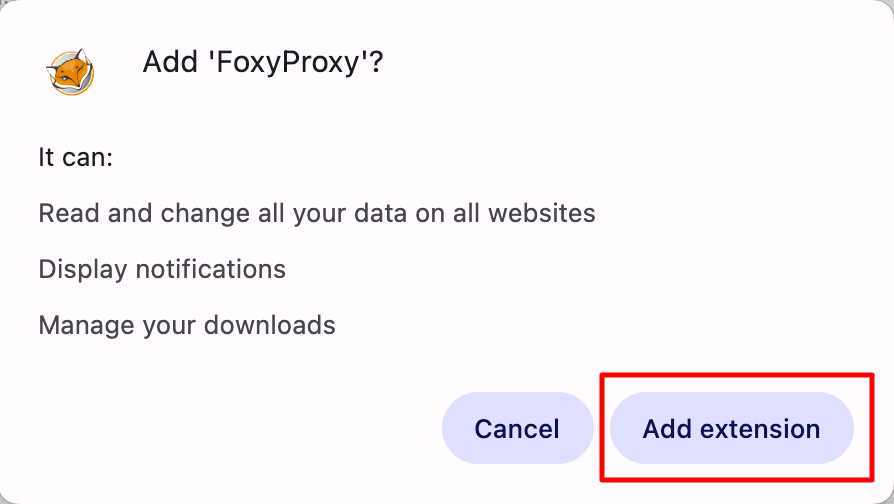
After installation, the FoxyProxy icon will appear in your browser toolbar.
Configuration
Step 1: Accessing FoxyProxy Settings
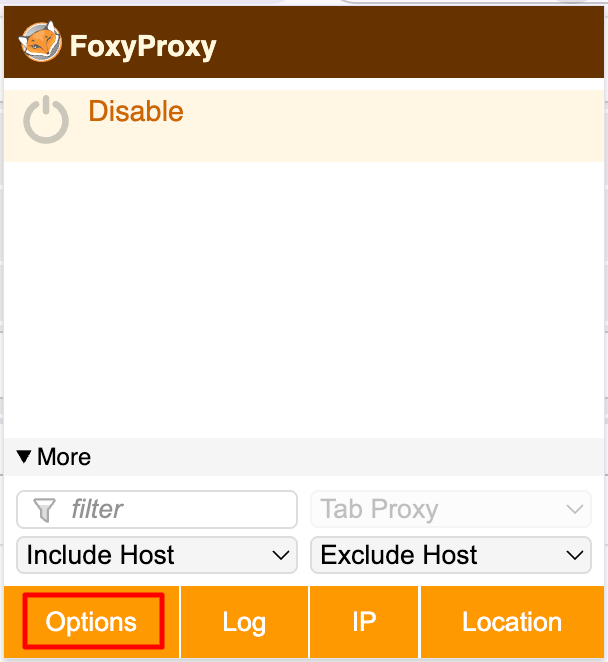
- Click the FoxyProxy icon in your toolbar
- Click the Options button to open settings
Step 2: Adding a New Proxy
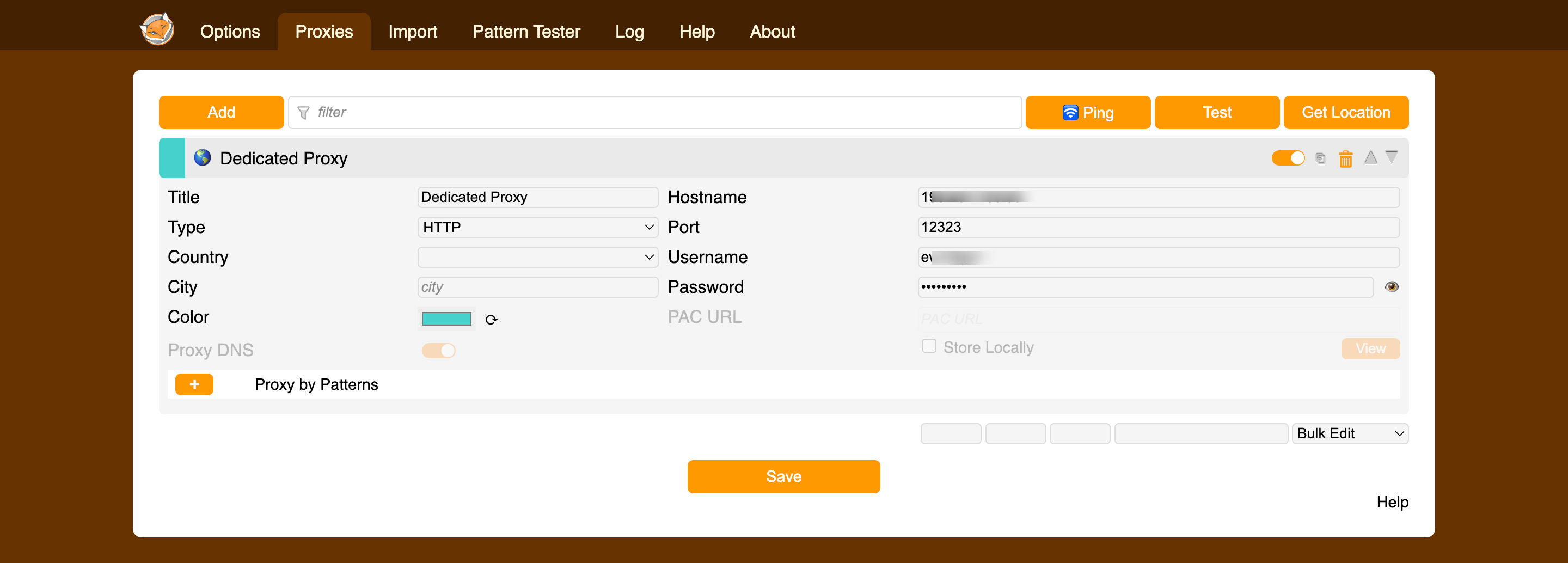
- Click Proxies tab> Add
- Select the Proxy Details tab
- Configure your proxy settings:
- Title: Give your proxy a recognizable name
- Proxy Type: Select HTTP/HTTPS or SOCKS
- Host Name: Enter Proxy Hostname
- Port: Enter the proxy port number
- Username: Enter Proxy Username
- Password: Enter Proxy Password
- Click Save
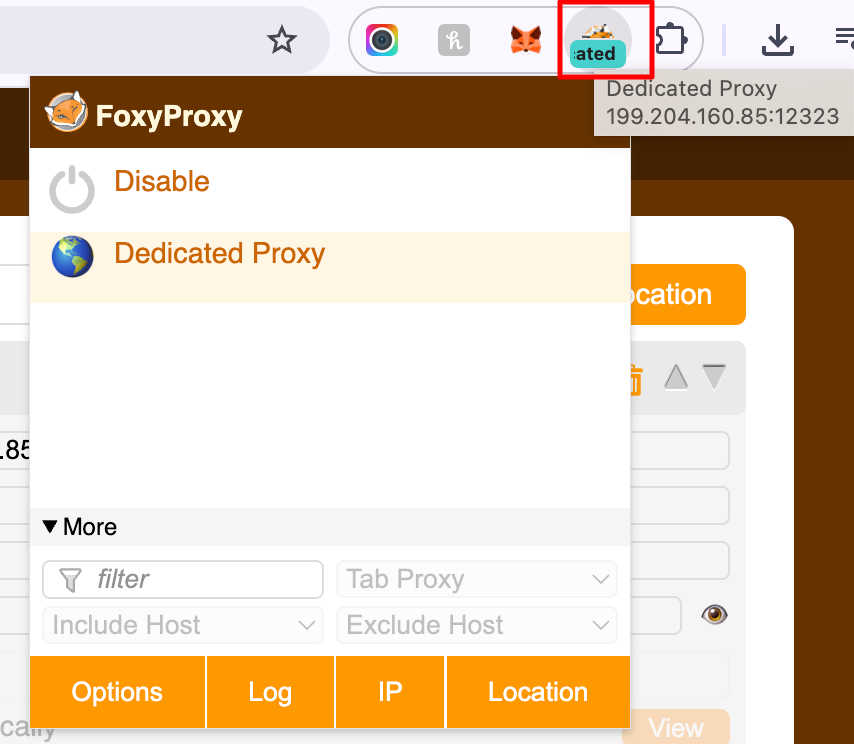
- Click Extension again, then select the added proxy, it will connect automatically.
Troubleshooting
Proxy Connection Not Working
- Verify Proxy Settings: Double-check IP, port, and protocol
- Check Authentication: Ensure username/password are correct
- Test Proxy Server: Verify the proxy server is accessible
- Check Firewall: Ensure no firewall is blocking the connection
Websites Not Loading with Expected Proxy
- Check URL Patterns: Verify patterns match the intended websites
- Pattern Priority: FoxyProxy uses the first matching pattern
- Enable Pattern Mode: Ensure pattern-based proxying is enabled
FoxyProxy Icon Not Appearing
- Check Extension Manager: Ensure FoxyProxy is enabled
- Browser Restart: Restart your browser
- Reinstall: Remove and reinstall the extension
Performance Issues
- Reduce Patterns: Too many patterns can slow down browsing
- Use Wildcards: Use *.domain.com instead of multiple specific patterns
- Check Proxy Speed: The proxy server itself might be slow
Frequently Asked Questions
What's the difference between FoxyProxy Standard and Basic?
FoxyProxy Standard offers pattern-based proxying, multiple proxy support, and advanced features. FoxyProxy Basic provides simple proxy switching without pattern matching.
Can I use FoxyProxy with VPN services?
Yes, if your VPN provider offers proxy servers. Configure FoxyProxy with your VPN's proxy server details for browser-only proxy routing.
How do pattern-based proxies work?
FoxyProxy checks URL patterns for each website you visit. If a pattern matches, it uses the associated proxy. Patterns are checked in order of priority.
Can I use multiple proxies simultaneously?
No, FoxyProxy uses one proxy at a time, but can automatically switch between proxies based on URL patterns.
Is FoxyProxy free?
FoxyProxy offers both free and paid versions. The free version includes basic functionality, while paid versions offer additional features and support.
How do I update FoxyProxy?
Extensions update automatically from the Chrome Web Store. You can manually check for updates in Chrome's extension manager.
Can I use FoxyProxy on mobile devices?
FoxyProxy is available for desktop browsers. For mobile devices, consider using VPN apps or browser-specific proxy solutions.
Additional Resources
Note: Replace placeholder image URLs with actual screenshots when adding to your WHMCS knowledge base.