
Postman Proxy Configuration Guide
Overview
Postman is a popular API development and testing platform that allows developers to create, test, and document APIs. Configuring Postman to work with our proxy service ensures that all your API requests are routed through our secure proxy servers.
This guide covers how to configure proxy settings in both the Postman desktop application and web version.
Key Benefits
- Secure API Testing: Route all API calls through encrypted proxy connections
- IP Consistency: Maintain consistent IP addresses for API rate limiting and whitelisting
- Regional Testing: Test APIs from different geographic locations
- Traffic Monitoring: Monitor and debug API traffic through proxy logs
Desktop Application Configuration
Step 1: Access Proxy Settings
- Download Postman.
- Open the Postman desktop application
- Click on the Settings icon (gear icon) in the top-right corner
- Select Settings from the dropdown menu
- Go to the Proxy tab in the settings window
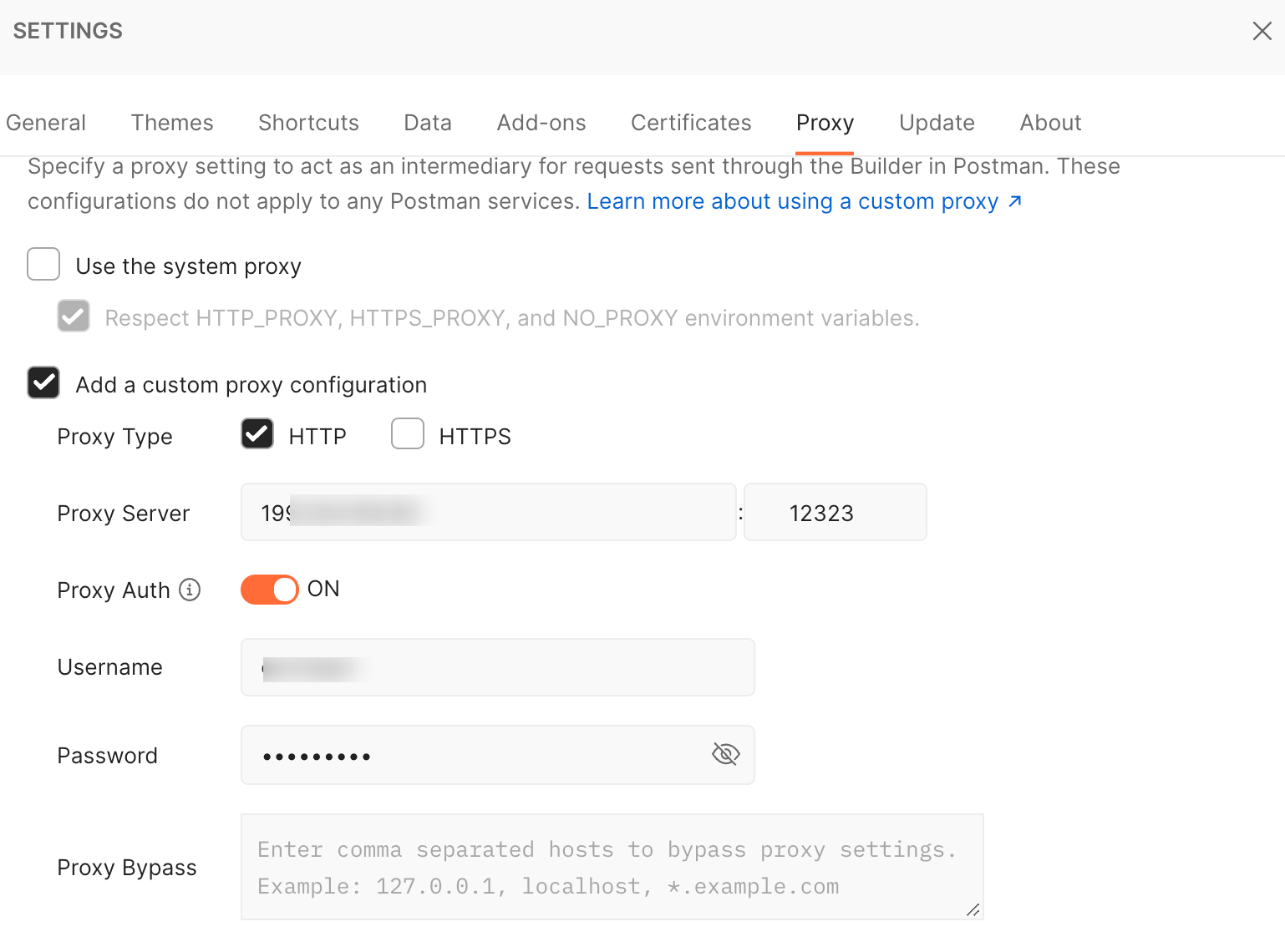
Step 2: Configure Proxy Settings
- Select Add a custom proxy configuration
- Configure the proxy settings:
- Proxy Type: HTTP or HTTPS (based on your proxy service)
- Proxy Server: Enter your proxy server IP address
- Port: Enter your proxy port number
- Proxy Auth: Enable if your proxy requires authentication
- Enter Username and Password
- Proxy bypass: Set up if required.
Step 3: Verify Proxy Configuration
After configuring your proxy settings, it's important to verify that the proxy is working correctly. Follow these steps to test your connection:
- Create a New Request:
- Click the + button to create a new tab
- Set the request method to GET
- Enter the following URL in the address bar:
https://api.ipify.org?format=json
- Send the Request:
- Click the Send button
- Wait for the response to load
- Check the Response:
- You should see a JSON response like:
{"ip":"YOUR_PROXY_IP_ADDRESS"} - Verify that the IP address shown matches your proxy server IP
- If the IP matches, your proxy is working correctly
- You should see a JSON response like:
Troubleshooting
Common Connection Issues
- API Requests Failing:
- Verify proxy server and port are correct
- Check if proxy requires authentication
- Test proxy connectivity outside Postman
- Timeout Issues:
- Increase timeout settings in Postman
- Check proxy server performance
- Verify network connectivity
Frequently Asked Questions
Can I use different proxies for different APIs?
Yes, you can create multiple environments with different proxy settings and switch between them as needed.
Does Postman support SOCKS proxies?
The desktop application primarily supports HTTP/HTTPS proxies. For SOCKS proxies, you may need to use system-wide proxy configuration.
Can I use proxy with Postman monitors?
Postman monitors run on Postman's servers and cannot use your local proxy configuration. You would need to use a self-hosted instance.
Need Help?
If you encounter issues configuring Postman with our proxy service:
- Verify your proxy server details are correct
- Test the proxy configuration with a simple tool first
- Check Postman's console for detailed error messages
- Contact our support team with specific error details